

Documentation Index
Fetch the complete documentation index at: https://askui-rename-vision-agent-to-python-sdk.mintlify.app/llms.txt
Use this file to discover all available pages before exploring further.
Misspellings of Words
Problem: The OCR model sometimes misreads characters, especially in certain fonts or noisy images. This can result in words being misclassified or misspelled, which then causes the automation to fail when it searches for exact matches. Example:✅ Expected Behavior
ⵊ Text is correctly spelled:
✅ Hallo ✅
👍 Works with
click().text("Hallo")❌ Actual Issue
ⵊ Text is misspelled
❌
HaII0 ❌👎 Can’t find
click().text("Hallo"). Because of recognition issues. (l->Iand o -> 0)Solutions
Re-Teach Sentence-Level OCR Model
Re-Teach Sentence-Level OCR Model
You can directly correct OCR predictions and improve OCR model accuracy by training your workspace-specific model.Steps:Step Level Model Composition
-
Start the AskUI shell:
-
Launch the OCR Teaching App:
- Upload a screenshot containing the misclassified word (e.g., “Hallo”).
- Switch to Trained Model for precise corrections.
-
Select the wrongly detected word (
HaII0) and replace it with the correct label:Hallo. - Press the Train Correction
- Click “Copy Model” to copy the newly trained model ID.
- In your automation code, update on model config on global level or on step level to use the new model:
Text Detection Issues
1. Icon Text Merging
Problem: Sometimes, Text Detector/annotation tool, merges an icon and texts into one, even though they look merged on screen. Example: Say you want to click just the name “Alice Johnson” field or just the position field in a interface - but OCR detects them as one long string:✅ Expected Behavior
🖼️ Icon and Text are detected separately:

🧑 ✅ Name ✅ 🤖 ✅ Role ✅
👍 Works with
click().text("Name") or click().text("Name")❌ Actual Issue
🖼️ Icon and text are detected together:

🧑 Name ❌ 🤖 Role ✅👎 Can’t find
click().text("Name").Solution
Re-Teach Sentence-Level OCR Model
Re-Teach Sentence-Level OCR Model
You can ignore train the OCR Recognition model to ignore the OCR detection error.Steps:Step Level Model Composition
-
Start the AskUI shell:
-
Launch the OCR Teaching App:
- Upload a screenshot containing the misclassified word (e.g., “Hallo”).
- Switch to Trained Model for precise corrections.
-
Select the wrongly detected word (
HaII0) and replace it with the correct label:Hallo. - Press the Train Correction
- Click “Copy Model” to copy the newly trained model ID.
- In your automation code, update on model config on global level or on step level to use the new model:
Use Custom Model Word-Level Detection
Use Custom Model Word-Level Detection
2. Merged Texts
Problem: Sometimes, Text Detector/ annotation tool, merges two separate texts into one, even though they look clearly split on screen. Example: Say you want to click just the name “Alice Johnson” field or just the position field in a interface - but OCR detects them as one long string:✅ Expected Behavior
🖼️ Text fields detected separately:
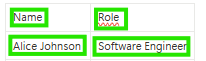
Alice Johnson ✅ Software Engineer ✅👍 Works with
text("Alice Johnson") or text("Software Engineer")❌ Actual Issue
🖼️ Texts merged into one block:
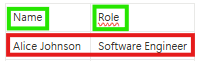
Alice Johnson Software Engineer❌👎 Can’t find either one on its own.
Solutions
Use Default Word-Level Detection (Best Practice)
Use Default Word-Level Detection (Best Practice)
Use Custom Model Word-Level Detection
Use Custom Model Word-Level Detection
Use relative anchore Element
Use relative anchore Element
This command show how you can use an anchore element move the mouse over another element.
3.Text Separation
Problem: Sometimes, Text Detector/ annotation tool, septerates a text into two texts, even though they look clearly merged on screen. Example: Say you want to click just the name “Alice Johnson” field or just the position field in a interface - but OCR detects them as two words:✅ Expected Behavior
🖼️ Words are detected as one sentence:
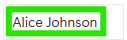
Alice Johnson ✅👍 Works with
text("Alice Johnson")❌ Actual Issue
🖼️ Words are detected as separated texts:

Alice❌ Johnson❌👎 Can’t find either
text("Alice Johnson") on its own.Solution
Use Default Word-Level Detection (Best Practice)
Use Default Word-Level Detection (Best Practice)
Use Custom Model Word-Level Detection
Use Custom Model Word-Level Detection
4. Vertical Text Merging
Problem: Sometimes, Text Detector/ annotation tool, merges two lines to one text, even though they look clearly as two lines on screen. Example: Say you want to click just the name “Alice Johnson” field or just the position field in a interface - but OCR detects them as one:✅ Expected Behavior
🖼️ Texts are detected as two lines:
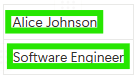
Alice Johnson ✅👍 Works with
text("Alice Johnson")❌ Actual Issue
🖼️ Texts are detected as one text:
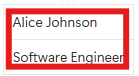
<no words recognized>❌👎 Can’t find either
text("Alice Johnson") on its own.Solution
Use Default Word-Level Detection (Best Practice)
Use Default Word-Level Detection (Best Practice)
Use Custom Model Word-Level Detection
Use Custom Model Word-Level Detection
5. Single Character not Detected
Problem: Sometimes, Text Detector/ annotation tool, does not detect single charactors, even though they look clearly on screen. Example: Say you want to click **just the character “2” - but OCR does not detects them:✅ Expected Behavior
🖼️ Single chars are detected:

1 ✅ 2 ✅ 3 ✅👍 Works with
text("2")❌ Actual Issue
🖼️ Char 2 is not detected:

1 ✅ 2 ❌ 3 ✅👎 Can’t find either
text("2") on its own.Solution
Use AI Element
Use AI Element
Single characters are sometimes flaky. So it’s better to relay on AI element.Steps:
- Open AskUI Shell
- Create a new AI Element
- Use captured AI Elements in your code:
If you cannot use the AskUI-NewAIElement command, activate experimental commands by running
AskUI-ImportExperimentalCommands in your terminal.6. Text not Detected
Problem: Sometimes, for no apparent reason, Text Detector/ annotation tool does not detect a text, even though you can see it clearly on screen. Example: Say you want to click just the name “Alice Johnson” field - but OCR does not detects the text at all:✅ Expected Behavior
🖼️ Text was detected:
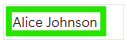
Alice Johnson ✅👍 Works with
text("Alice Johnson")❌ Actual Issue
🖼️ Text wasn’t detected

Alice Johnson❌👎 Can’t find either
text("Alice Johnson") on its own.Solution
Use AI Element
Use AI Element
In the case the text was not detected you have to use the AI Element.Steps:
- Open AskUI Shell
- Create a new AI Element
- Use captured AI Elements in your code:
If you cannot use the AskUI-NewAIElement command, activate experimental commands by running
AskUI-ImportExperimentalCommands in your terminal.